


2025
Project started
First internal prototype.

A nooto does not need to be permanent from the beginning. Many nooto pages are also used as lightweight shared workspaces for texts that are still evolving.
Because nooto pages are immediately accessible through a clean public URL, they work well for drafts, collaborative writing, project notes, research material, briefings, presentations, temporary publications, or structured documents that need to be shared quickly without becoming messy.
Even provisional content benefits from:
In many cases, a nooto begins as a temporary or evolving document and later naturally becomes a more complete and permanent publication.
This flexibility makes nooto useful not only for finished websites, but also for living documents, shared ideas, and ongoing projects.
Nooto Starter includes one Nooto and is ideal for personal websites, portfolios, notes, documentation, and independent projects.Nooto Pro includes up to ten Nootos, advanced themes, analytics, and additional publishing features for professionals, organizations, and businesses.The email address used during checkout automatically becomes the login email for your Nooto account.
After activation, sign in to your account dashboard and set:
These credentials are required for editing, account management, password recovery, and subscription management.
Once activated, you can immediately begin building and publishing your Nooto.

# Title for Page 1
# Title for Page 2
# Title for Page 3
# Title for Page 4
This will create the links in the navigation sidebar and the pages/sections.
Next, add actual contents to these chapters/pages.
# Title for Page 1
## Subtitle
Text with **bold** or *italic*.
Nooto includes several automatic behaviours designed to keep pages clean, lightweight, and readable without requiring complex configuration.
If a Nooto page has no Markdown content, the system automatically generates a minimal placeholder page.
Depending on the configuration, this page may display:
This behaviour avoids broken or visually empty pages while preserving a clean appearance.
Nooto automatically detects sections from Markdown headings.
Example:
# Introduction

## Subtitle

# Projects

# Contact
Each # Heading becomes a navigable section inside the Nooto menu.
The search field inside the navigation menu only appears when needed.
If a Nooto contains very few sections, the search input is automatically hidden to reduce interface noise.
Nooto remembers the last reading position of a visitor before leaving the page.
This may include:
When the visitor returns, Nooto may briefly suggest continuing from the previous position.
The suggestion appears only for a few seconds and disappears automatically if ignored.
This behaviour is designed to improve long-form reading experiences (books, manuals) while remaining lightweight and non-intrusive.

Before thinking about:
focus first on the reading flow.
A good Nooto should feel natural to read from top to bottom.
The structure should guide the visitor gently through the content.
A Nooto works best when divided into a small number of strong sections.
Usually:
# chapters is excellentEach chapter should have a clear purpose and identity.
The titles of your chapters matter more than visual effects.
A visitor should understand the structure of your Nooto simply by reading the navigation menu.
Good chapter titles are:
Examples:
Avoid overly fragmented or temporary titles.
Modern websites often become chaotic because every page tries to become its own universe.
Nooto prefers:
A visitor should never feel lost.
Inside each chapter, you can still use:
The content inside a chapter can become rich and expressive.
But the global structure should remain:
Many creators split content into too many pages and subsections.
This usually weakens the reading experience.
A stronger approach is often:
Readers tend to remember coherent chapters more than fragmented micro-pages.
Nooto is designed for:
The structure should therefore feel stable and understandable even after many years.
Do not try to design everything immediately.
Start with:
Only later add:
A strong Nooto usually grows progressively over time.
A simple structure is often more powerful than a complex one.
The goal of Nooto is not to impress visitors with technical complexity.
The goal is to help people:
That is why Nooto prioritizes textual flow and structural clarity over visual fragmentation.

# or * or -.Writing titles, lists, links, quotes, or emphasizing words with symbols is very similar to how Markdown works. The goal of Markdown is to make writing feel natural, fast, and distraction-free.
Unlike traditional website builders or word processors, Markdown focuses on content first. You write text in a lightweight, natural and readable form, and the platform automatically transforms it into a beautiful webpage or document.
Markdown is widely used by developers, writers, researchers, students, bloggers, and online communities because it is easy to learn, portable, future-proof, and works on almost every device.
Even complex projects containing chapters, sections, lists, references, tables, links, notes, code, images, or long-form documentation remain easy for AI systems to process and manipulate without breaking the overall structure of the text.
In practice, this means that AI can help you:
Because Markdown remains lightweight and readable even outside of Nooto, your content also stays portable, future-proof, and easy to reuse across different AI systems and platforms.
Copy the prompt below and customize it for your project.
Dear AI, you are creating content for a Nooto.org page.

Topic:
WRITE YOUR TOPIC HERE

Language:
English

Style:
Warm and direct, easy to understand


IMPORTANT RULES:

- Output ONLY clean Markdown.
- Do NOT use HTML.
- Use # to create short titles for main sections/pages.
- In Nooto every # becomes a menu item and a page.
- Use ## and ### for subsections.
- Keep the writing clean, readable and elegant.
- Prefer short paragraphs.
- Use * and 1. lists when useful.
- write nude email addresses just such as info@domain.com
- Do NOT explain Markdown syntax.
- Do NOT wrap the output in code blocks.
- The final text must be directly copy-pasteable into Nooto.

Nooto.org structure example:


# Home
Intro text...

# About
About text...

## History
More details...

# Contacts
Contact information...# only for major sections/pages.# sections.Headings are used to divide your Nooto into pages, chapters, and sections.
# Page title (create a link in the navigation menu)

## H2 Section title or main sub-text

### H3 Smaller section title or secondary sub-text

#### H4 Some important detail

##### H5 Highlight (in your Brand main color)

###### H6 Attention Message (displayed in red)
Result:
Normal text is written as simple paragraphs. Leave one empty line between paragraphs.
This is the first paragraph.
This is the second paragraph.Use bold text for important words or strong emphasis.
This is **important text**.Result:
This is important text.
Use italic text for light emphasis, titles, or subtle changes of tone.
This is *italic text*.Result:
This is italic text.
You can combine bold and italic when stronger emphasis is needed.
This is ***bold and italic text***.Result:
This is bold and italic text.
Strikethrough can be used for corrections, removed ideas, or text that is intentionally crossed out.
This is ~~deleted text~~.Result:
This is deleted text.
Blockquotes are useful for quotations, notes, excerpts, or highlighted thoughts.
> This is a quotation or highlighted note.Result:
This is a quotation or highlighted note.
Use lists to organize information clearly.
* First item
* Second item
* Third item
Result:
Numbered lists are useful for steps, instructions, rankings, or ordered sequences.
1. First step
2. Second step
3. Third step
Result:
Links can point to websites, documents, references, or external resources.
[Visit Nooto](https://nooto.org)Result:
A horizontal rule creates a visual separation between parts of the page.
---
Result:
Write the text and its reading between full-width vertical bars:
Example:
私は|日本|にほん|へ行きます。Result:
私は日本へ行きます。
(with furigana displayed above 日本)
|私|I|は|日本|Japan|へ|行|go|きます。私は日本へ行きます。
The syntax uses the full-width vertical bar:
|This character is commonly available on Japanese keyboards and allows Ruby annotations to be written without switching to a Latin keyboard layout or using special complex tags.
|私|わたし|は|日本|にほん|へ|旅行|りょこう|することが|大好|だいす|きです。

|毎年|まいとし|、|東京|とうきょう|や|京都|きょうと|、|大阪|おおさか|などの|都市|とし|を|訪|おとず|れ、|歴史|れきし|や|文化|ぶんか|について|学|まな|びます。

|先週|せんしゅう|は|新幹線|しんかんせん|に|乗|の|って|東北地方|とうほくちほう|を|巡|めぐ|りました。|車窓|しゃそう|から|見|み|える|山々|やまやま|や|川|かわ|の|景色|けしき|は|非常|ひじょう|に|美|うつく|しく、|写真|しゃしん|をたくさん|撮影|さつえい|しました。

|日本|にほん|には|四季|しき|があり、|春|はる|には|桜|さくら|、|夏|なつ|には|祭|まつ|り、|秋|あき|には|紅葉|こうよう|、そして|冬|ふゆ|には|雪景色|ゆきげしき|を|楽|たの|しむことができます。

|外国人旅行者|がいこくじんりょこうしゃ|にとって、|公共交通機関|こうきょうこうつうきかん|の|正確|せいかく|さや|安全性|あんぜんせい|は|大|おお|きな|魅力|みりょく|です。

また、|多|おお|くの|博物館|はくぶつかん|や|美術館|びじゅつかん|では、|日本|にほん|の|伝統芸能|でんとうげいのう|や|工芸品|こうげいひん|について|詳|くわ|しく|知|し|ることができます。

|私|わたし|が|特|とく|に|感動|かんどう|したのは、|奈良|なら|の|古寺|こじ|を|訪問|ほうもん|したときです。|千年以上|せんねんいじょう|の|歴史|れきし|を|持|も|つ|建築物|けんちくぶつ|を|目|め|の|前|まえ|にすると、|時間|じかん|の|流|なが|れを|感|かん|じます。

|現在|げんざい|、|多|おお|くの|人々|ひとびと|が|携帯電話|けいたいでんわ|や|人工知能|じんこうちのう|を|利用|りよう|して|情報収集|じょうほうしゅうしゅう|をしていますが、|実際|じっさい|に|現地|げんち|を|歩|ある|き、|体験|たいけん|することの|価値|かち|は|変|か|わりません。

これからも|新|あたら|しい|場所|ばしょ|を|発見|はっけん|し、|多様|たよう|な|人々|ひとびと|との|交流|こうりゅう|を|深|ふか|めたいと|考|かんが|えています。私は日本へ旅行することが大好きです。
毎年、東京や京都、大阪などの都市を訪れ、歴史や文化について学びます。
先週は新幹線に乗って東北地方を巡りました。車窓から見える山々や川の景色は非常に美しく、写真をたくさん撮影しました。
日本には四季があり、春には桜、夏には祭り、秋には紅葉、そして冬には雪景色を楽しむことができます。
外国人旅行者にとって、公共交通機関の正確さや安全性は大きな魅力です。
また、多くの博物館や美術館では、日本の伝統芸能や工芸品について詳しく知ることができます。
私が特に感動したのは、奈良の古寺を訪問したときです。千年以上の歴史を持つ建築物を目の前にすると、時間の流れを感じます。
現在、多くの人々が携帯電話や人工知能を利用して情報収集をしていますが、実際に現地を歩き、体験することの価値は変わりません。
これからも新しい場所を発見し、多様な人々との交流を深めたいと考えています。
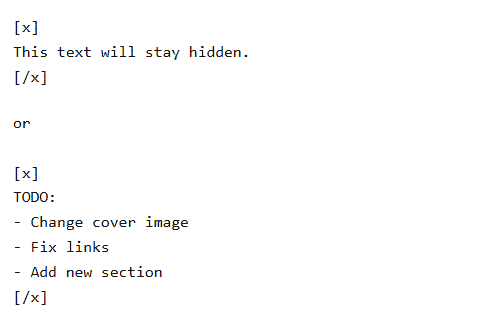
Everything inside the block will be completely removed before the page is rendered.
Hidden blocks are useful for:
The hidden content will not appear on the page.
For example, a Nooto page may contain images, YouTube videos, audio files, PDFs, or external resources without those files being physically stored by Nooto itself.
This approach keeps Nooto lightweight, portable, fast, and easy to maintain over time, while allowing you to retain full ownership and control over your media files.
Large images will automatically expand to the full content width:

Smaller images will naturally appear smaller when appropriate:

You can also explicitly request a custom image width in pixels by adding a second pair of parentheses after the image URL:
(Pixels)Example of a very heavy image rendered normally:

The same image rendered at only 150 pixels:

If the image URL is incorret or the image does not exist or is unavailable, Nooto will automatically display a fallback placeholder image instead of a broken browser icon:


One of the most popular photography platforms in the world.
Beautiful modern photography for:

Free photos and videos with a very clean and modern style.
Perfect for:

Huge historical and cultural archive.
Perfect for:

Search engine for Creative Commons media from many different sources.
Useful when searching for specific themes or rare images.
Always make sure you have the right to use an image.
Some images may require:
Please respect the original creators whenever possible.
Nooto will automatically optimize and cache external images when possible.
gallery special block and place one image URL per line.caption using the | separator.[gallery]
https://photo.com/4BB6E23A.jpg | Bike and Snow
https://photo.com/5C208EED.jpg | Reflections
https://photo.com/6C1131BA.jpg | Tram
https://photo.com/C25050F9.jpg | Road
https://photo.com/82059B9A.jpg | TV Tower
https://photo.com/IMG_0057.JPG | Bridge
https://photo.com/missing.jpg | Error
[/gallery]Result:
When a gallery image is opened fullscreen you can use:
The lightbox is optimized for both desktop and mobile devices.
Example:
| Name    | Country | Role       |
| ------- | ------- | ---------- |
| Alice   | Japan   | Writer     |
| Bruno   | Italy   | Designer   |
| Clara   | Canada  | Researcher |
Result:
| Name | Country | Role |
|---|---|---|
| Alice | Japan | Writer |
| Bruno | Italy | Designer |
| Clara | Canada | Researcher |
Tables can contain text, numbers, dates, links, or short notes.
Keeping tables simple usually produces the best visual result, especially on mobile devices and printed pages.
Example:
https://www.youtube.com/watch?v=jNQXAC9IVRw
https://youtu.be/jNQXAC9IVRw
or, you can add a Label like the example below.
[ブランコ株式会社](https://youtu.be/0g2IF7uuwOc)
The video will appear directly inside the page, making it easier to create presentations, lectures, music collections, documentaries, tutorials, interviews, or multimedia articles without using additional HTML code.
For the cleanest result, place video links on separate lines rather than inside paragraphs or lists.
[Vimeo](https://vimeo.com/318235505?fl=pl&fe=cm)
Nooto will automatically transform the link into an audio player that visitors can play directly inside the page.
For the best result, use direct file links rather than streaming pages or download portals, and place audio links on separate lines.
Example:
https://mavilio.com/sonoro/audio/01.mp3
[Separation](https://mavilio.com/sonoro/audio/01.mp3)
Paste a Google Maps link directly into your text:
https://maps.app.goo.gl/eXb6RDZfwYKuREd89Nooto will automatically turn it into a clean map card:

This is the easiest and safest option.
If you want to show the actual interactive map inside your page, open Google Maps, click Share, then choose Embed a map.
Copy the iframe code and paste it into Nooto:
<iframe src="https://www.google.com/maps/embed?pb=..." width="600" height="450" style="border:0;" allowfullscreen="" loading="lazy"></iframe>Nooto will automatically make the map responsive and visually clean.
By linking your own Google Analytics property, you can monitor page views, traffic sources, visitor locations, devices, engagement metrics, and other analytics directly from your Google account.
To enable Google Analytics:
G-XXXXXXXXXX).Once configured, Nooto will automatically include the required Google Analytics tracking code on your website.
All analytics data is collected and stored directly by Google Analytics and remains under your control.

By linking your own Umami website, you can monitor page views, visitor activity, referrers, countries, devices, browsers, and other essential analytics directly from your Umami dashboard.
To enable Umami Analytics:
Once configured, Nooto will automatically include the required Umami tracking code on your website.
All analytics data is collected and stored directly by your Umami account and remains under your control.
The main sitemap contains public Nooto websites published on the platform.
Each public Nooto automatically generates a dedicated sitemap listing its internal pages and sections.
The sitemap is updated automatically whenever the content of the Nooto changes.
XML sitemaps help search engines:
This is particularly useful for documentation, portfolios, research archives, company websites, and other projects containing multiple sections.
If a Nooto is connected to a custom domain, the sitemap automatically uses the public URLs of that domain.
This helps search engines associate indexed pages with the correct website while keeping sitemap generation fully automatic.
Nooto was designed to remain simple and readable, so every advanced block uses a very lightweight and human-friendly syntax.
Each feature is explained in its own dedicated chapter with practical examples and copy-paste snippets.
hero block allows you to create large visual sections with a cover image, title, subtitle, and call-to-action button.
[hero]
https://von.arx.onl/cover.jpg
# REIWA
## An Outsider’s Chronicle of Contemporary Japan
### Get the Books
[/hero]
Result:

First URL → Cover image# → Main title## → Subtitle### → Button textLast URL → Button destinationAll fields except the image are optional.
[hero]
https://www.example.com/cover.jpg
# My Project
[/hero]
Result:

Hero blocks automatically adapt to desktop and mobile screens and display text directly on top of the cover image.
Use them to separate notes, contact information, warnings, quotations, summaries, pricing information, or any content that deserves additional visual emphasis.
The content inside a Strip can contain headings, lists, links, images, buttons, and other supported Nooto elements.
[strip]
## Strip
### A Strip displays content between two subtle horizontal lines.
The content inside a Strip can contain headings, lists, links, images, buttons, and other supported Nooto elements.
[/strip]A Box displays content inside a bordered container.
Like Strips, Boxes support regular Markdown and most Nooto tags.
[box]
## Box
A Box displays content inside a bordered container.
Like Strips, Boxes support regular Markdown and most Nooto tags.
[/box][button]
hello@nooto.org
Contact Us
[/button]
[button]
https://nooto.org/edit.php
Edit this Nooto
[/button]Result:
[toc]Result:
# Heading 1.# Heading 1 are ignored.← Previous section→ Next section, Previous section. Next sectionUse card when you want to show one single card.
[card]
https://von.arx.onl/favicons/cover.jpg
# Von Arx Books
https://von.arx.onl
[/card]Use cards when you want to show multiple cards in a responsive grid.
[cards]

[card]
https://tik.onl/favicons/cover.jpg
# Tik
Ideas.
https://tik.onl
[/card]

[card]
https://mavilio.com/sonoro/favicons/cover.jpg
# Sonoro
**Drones from Japan**
https://mavilio.com/sonoro
[/card]

[card]
# Title without image
This is a blank card with a non working target URL.
https://example.com
[/card]

[/cards]
Ideas.

Drones from Japan
This is a blank card with a non working target URL.

The lips of wisdom are closed, except to the ears of Understanding.
This is a blank card with only text.

To display books or publications use the books and book blocks.
[books]
[book]
https://www.book.com/book.jpg
# Title
Author
https://www.book.com/isbn
[/book]

[book]
Repeat Pattern for book 2
[/book]

[book]
Repeat Pattern for book 3
[/book]

[/books]
Result:
Structure of each book block:
#)Books are automatically displayed as elegant responsive covers:
You can also show a single standalone book:
[books]
[book]
https://www.book.com/book.jpg
# Title
Author
https://www.book.com/isbn
[/book]
[/books]Nooto includes a lightweight news system designed for chronological updates, announcements, logs, journals, and public communications.
Unlike traditional blogs, Nooto News does not create separate pages for every article.
All news entries remain inside the same reading flow of the Nooto.
This keeps the experience:
To create a news section use:
[new]
2026/12/01
# Title
## Subtitle / short intro

Long text in Markdown.

You can add:
- images
- links
- lists
- videos
- cards
- galleries

[/new]
Result:
Long text in Markdown.
You can add:
Each new block becomes a collapsible article.
Visitors initially see:
Then they can open the full content when needed.
This allows long news archives to remain readable without creating extremely long pages.
The News parser is intentionally tolerant.
You can omit some lines if you want.
In this way you can use the same module for collapsible elements other than actual news.
A similar ouput is given by the tags faq and toggle.
[new]
# New update
Today we improved the mobile layout.
[/new]Today we improved the mobile layout.
[new]
2026/12/01
# New server online
The migration has been completed.
[/new]The migration has been completed.
Good News sections usually:
News entries work best as:
We improved how Nooto handles external images.
When you add an image from another website, Nooto can now load it through its own image proxy. This helps pages stay faster, cleaner, and more stable over time.
This update is especially useful for users who do not have their own web hosting space.
You can still use public image sources such as:
The recommended approach is simple:
The new [cards] block makes it easier to create elegant visual groups inside a Nooto page.
Example use cases:
You can combine cards with regular Markdown text, images, buttons, and links.
The timeline tag allows you to create elegant chronological stories inside your Nooto.
Timelines are perfect for:
Each event is written using a simple time block.
You can use normal Markdown inside each timeline event, including:
Timelines automatically adapt to your Nooto color and visual style.
[timeline]

[time]
2025
# Project started
First internal prototype.
[/time]

[time]
2026
# Public beta
First users joined Nooto.
[/time]

[/timeline]First internal prototype.
First users joined Nooto.
toggle blocks.[toggle]
# Click here to open 1
Whatever.
[/toggle]
[toggle]
# Click here to open 2
Whatever.
[/toggle]Result:
Whatever.
Whatever.
social block.[social]
https://instagram.com/username
https://x.com/username
https://github.com/username
https://youtube.com/@username
[/social]The result will look like this:
Currently supported platforms include:
If Nooto recognizes the domain, it will automatically display the correct platform name.
Unknown links will simply appear as generic website buttons.
Write the email address directly in your text:
contact@domain.comResult:
Nooto will automatically protect the address in the page source and make it clickable for real visitors.
You can also create a custom email link using standard Markdown:
[Contact us](mailto:contact@domain.com)Result:
This method is useful when you do not want to display the full email address.
mailto: link.For this reason Nooto suggest anyway to use the tag contact.
Nooto includes a simple integrated contact form system.
To add a contact form anywhere inside your page, simply write:
[contact]and Nooto will automatically generate a modern AJAX contact form directly inside your page like this:
The form sends messages to your email address.
Your email email is never exposed publicly in the HTML source.
This helps reduce spam and unwanted scraping bots.
You can switch themes at any time from your Nooto settings. Because themes only change presentation, no content migration or editing is required.
For theme previews, screenshots, and detailed information, visit:
The NootoID is the unique public identifier of your Nooto and becomes part of the URL.
https://nooto.org/THIS-PARTTo sign in to your account you normally need to enter:
A single person can own multiple Nooto sites using the same email address and password. However, each Nooto must always have its own unique NootoID.
Inside the account area you can typically manage:
Access your account here:
The NootoID defines the public address of your nooto.
Example:
https://nooto.org/my-projectThe title represents the main public name of your Nooto and is usually used in page headers, browser titles, previews, and navigation.
The body of the Nooto contains the Markdown content of your pages, sections, images, tables, links, media, and overall structure.
You can choose how the main content is aligned (left/justify), depending on the visual style and readability you want for the project.
Author and Institution fields can be used for personal attribution, academic projects, organizations, studios, research groups, archives, or editorial publications.
The primary language of the Nooto can be specified to improve consistency, typography, accessibility, and metadata generation.
Each Nooto can have its own visual identity through a primary color. This color is automatically reflected in important interface elements such as the navigation menu, main titles, and hyperlinks.
A consistent color choice helps give personality and recognition to the overall project while keeping the interface clean and readable.
A Nooto can typically be configured as:
This controls how and where the nooto becomes visible inside the Nooto ecosystem.
https://domain.com
https://domain.com/folder
https://sub.domain.com
https://sub.domain.com/folder
The setup is intentionally lightweight. In all cases, Nooto only requires two small files (.htaccess and index.php) to be uploaded inside the correct root folder or subfolder of your web hosting space.
For example:
domain.com → upload the files into the main public web rootdomain.com/folder → upload the files into that specific foldersub.domain.com → upload the files into the subdomain foldersub.domain.com/folder → upload the files into the subdomain > folderIn addition to uploading the files, it is also important to configure the exact desired URL inside your Nooto account. This allows the Nooto system to correctly recognize, connect, and serve your content from the chosen address.
If you do not yet own a domain, you can first create your Nooto on nooto.org and later connect your own domain whenever you want.
.md file.Example:
---
Title: "My Nooto"
NootoID: "my-page"
Lang: "en"
Color: "#222222"
Etc: "etc"
---

### Hello World

This is my exported Nooto with all my content.
The export system is designed to keep your content portable, independent and future-proof.
faq blocks.[faq]
# Question 1
Answer 1
[/faq]
[faq]
# Question 2
Answer 2
[/faq]Nooto is a lightweight publishing platform based on Markdown and simple structured content.
No. Most Nooto pages can be created using only plain text and simple Markdown syntax.
Yes. Nooto supports custom domains and external hosting configurations.
No. Nooto focuses on readable text structures instead of complex visual builders and heavy databases.
Yes. Nooto supports embedded media, images, galleries, and external content.
Yes. The platform is designed to remain readable and lightweight across phones, tablets, and desktops.
Yes. Nooto is optimized for journals, essays, research pages, documentation, and other long-form projects.
Yes. Every Nooto page can be updated at any time through the editing interface.
Yes. Images may be normalized, resized, cached, and optimized automatically for faster loading.
Yes. One of the main goals of Nooto is keeping websites lightweight, fast, and durable over time.
When a visitor opens a Nooto page, such as:
https://nooto.org/exampleNooto performs a series of steps before displaying the content.
The system first analyzes the incoming request.
Depending on the domain and URL structure, Nooto determines:
whether the request comes from:
nooto.org/NootoID)Invalid NootoIDs or page names are immediately rejected.
Once the NootoID is known, Nooto searches the database for the corresponding site.
A site can be found through:
If no matching site exists, the visitor is redirected to the public Nooto directory.
Before doing any expensive work, Nooto generates an ETag based on the site's latest edit timestamp.
If the visitor already owns the latest version, the server returns:
304 Not Modifiedwithout rebuilding the page.
This significantly reduces bandwidth and server load.
Nooto records page visits in a lightweight way.
To avoid counting refreshes repeatedly, each visitor generates at most one hit per site every 24 hours.
This produces cleaner statistics while keeping the implementation simple.
The platform loads the site's basic settings:
Invalid values are replaced with safe defaults.
The core content of a Nooto site is stored as Markdown.
Nooto loads the Markdown document and prepares a secure parser.
The parser operates in Safe Mode, meaning arbitrary HTML cannot be injected into the page.
Before Markdown is rendered, Nooto scans the document for special Nooto blocks.
Examples include:
* [card]
* [cards]
* [gallery]
* [timeline]
* [social]
* [books]
* [news]
* [button]
* [contact]
Each block is temporarily replaced with an internal placeholder.
After Markdown rendering is completed, those placeholders are restored as fully generated HTML components.
This approach keeps the Markdown engine simple while allowing advanced layouts.
Nooto automatically enhances content.
Examples include:
The author only needs to provide standard URLs.
Every first-level heading:
# Introduction
# Projects
# Contact
# Whatever marked with a single #
is treated as a major site section.
Nooto extracts these sections and creates:
A single Markdown document therefore becomes a complete multi-section website.
After parsing is complete, Nooto stores the processed result in a JSON cache.
The cache contains:
Future requests can reuse this cache without reparsing the Markdown document.
Whenever the site is edited, the cache automatically becomes obsolete and is rebuilt.
Using the extracted sections, Nooto builds the navigation menu.
The menu automatically adapts to the content.
No manual menu management is required.
If enough sections exist, search functionality is enabled automatically.
Finally, Nooto generates:
This ensures the page is ready for:
The final HTML is sent to the visitor.
What the visitor experiences as a simple page is actually the result of:
All of this happens automatically from a single Markdown source.